How to Upload a GIF to Instagram in 2026 (Stories, Reels, Feed, DMs)
Instagram still doesn't accept GIF uploads in feed. Here's the actual workaround that works in May 2026, every supported place GIFs DO work (DMs, Stories via GIPHY, Reels conversion), and why the file extension is the trap.
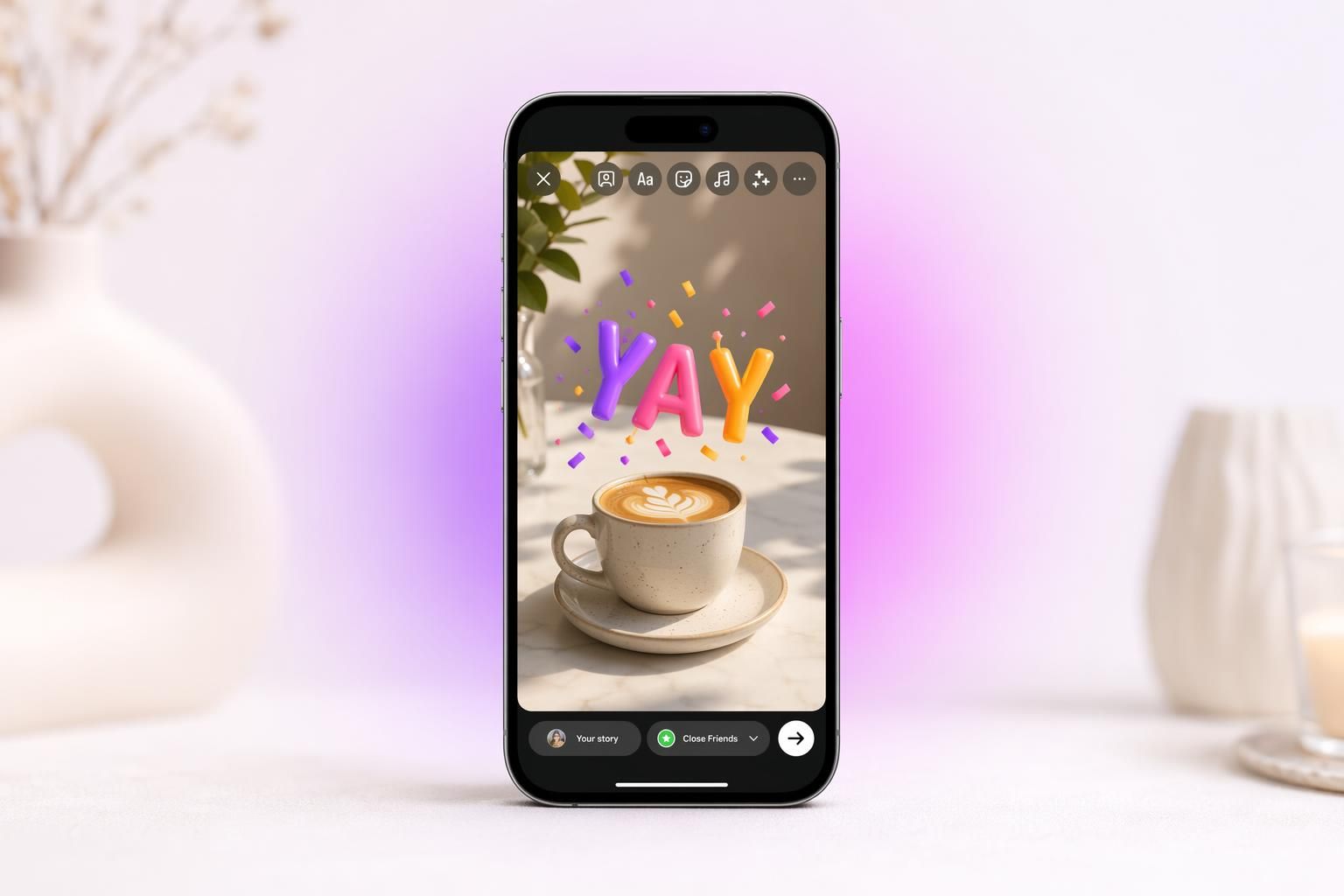
Instagram strips the animation when you upload a raw .gif to Feed. Three fixes by surface: Feed needs an MP4 (convert with ezgif), Stories and Reels use the GIPHY sticker tray, DMs accept .gif files natively. Specs and the exact taps below.
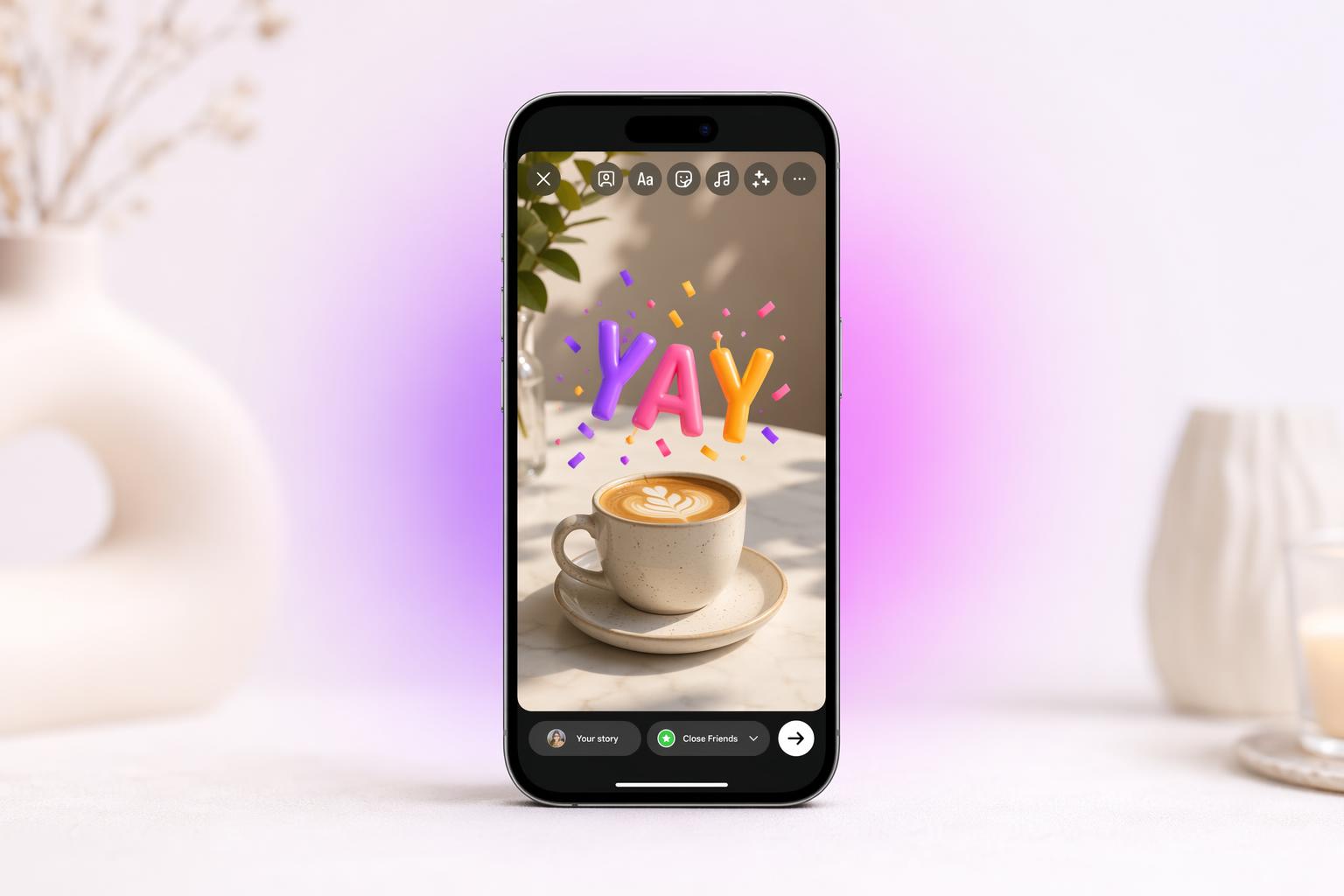
Where GIFs Work on Instagram (And Where They Die)
What works where:
| Surface | Direct .gif works? | Workaround | Time to post |
|---|---|---|---|
| Stories | No | GIPHY sticker tray | ~30 seconds |
| Reels | No | GIPHY sticker, or convert .gif to .mp4 | ~2 minutes |
| Feed | No | Convert .gif to .mp4 first | ~3 minutes |
| DMs | Yes | Drag .gif from camera roll, or use GIPHY in sticker tray | ~15 seconds |
| Comments (mobile) | Yes | GIPHY library only, mobile app only | ~20 seconds |
Method 1: GIF in a Story via the GIPHY Sticker (Easiest)
No conversion, no third-party tools. The catch: you cannot upload your own raw .gif this way; you are picking from GIPHY's library (and on some Business accounts, Tenor's). Confirmed flow per GIPHY's help docs.
Step-by-step: GIPHY sticker in a Story
- Open Instagram. Swipe right from the home feed, or tap your profile picture in the top-left to start a new Story.
- Take a photo or video, or upload an existing image / video from camera roll using the gallery icon in the bottom-left.
- Tap the sticker icon at the top of the editor (it looks like a square smiley face).
- In the sticker tray that slides up, tap the GIF button. On most accounts it appears in the top row.
- Search GIPHY by keyword in the search bar. Tap any result to drop it on the canvas.
- Pinch to resize, drag to reposition, tap the sticker to cycle through color variants when available.
One 2026 nuance: some Business accounts now pull stickers from Tenor instead of GIPHY, rolled out with no in-app notice. If your branded GIPHY channel stickers vanished, that is the cause (source).
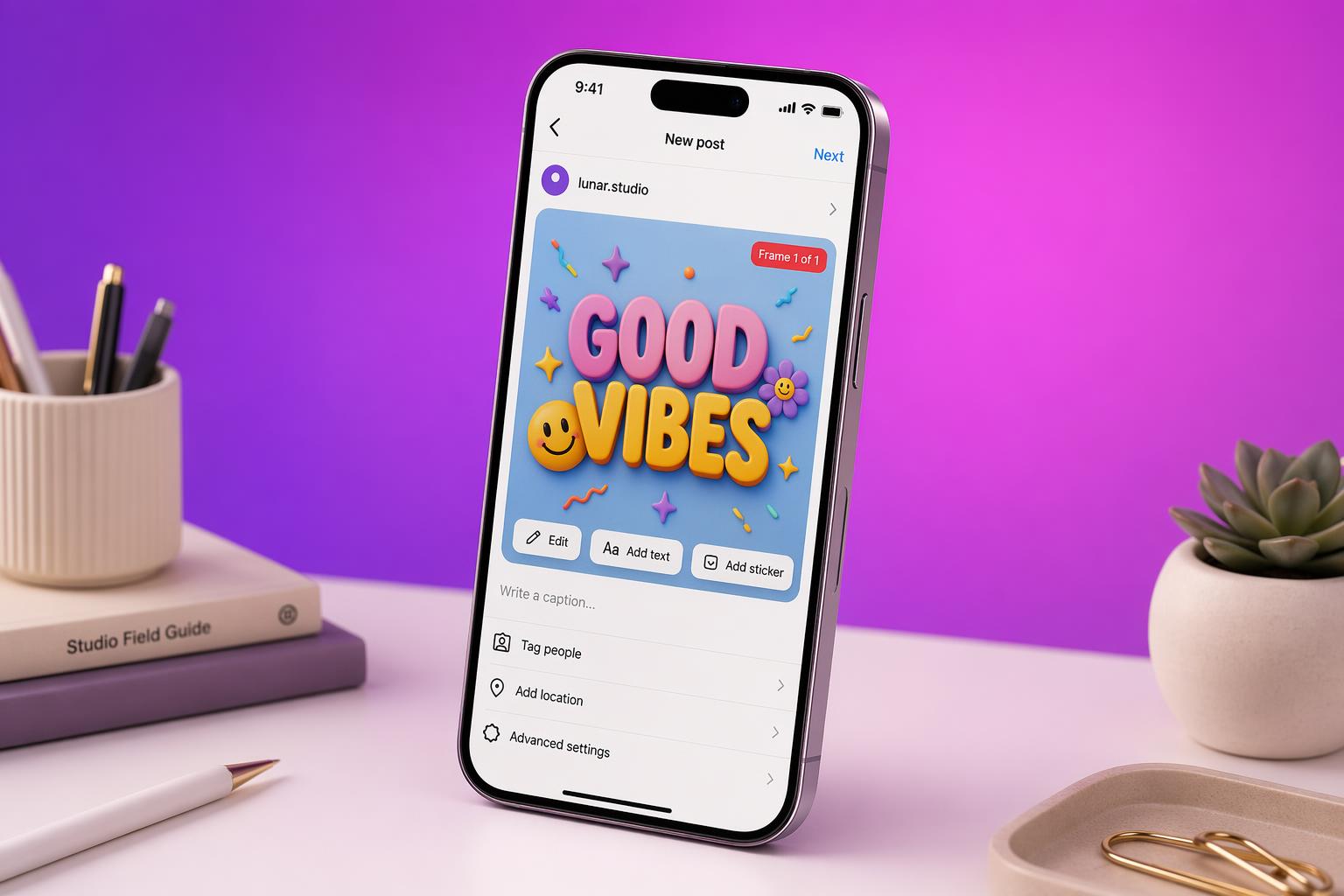
Method 2: GIF in a DM (the One Truly Native Path)
Two variants: send from the GIPHY library inside the app, or send a .gif file you saved yourself. Both work. Documented in Instagram's help center.
Variant 2a: From GIPHY library inside Instagram
Same sticker-tray flow as Stories, just inside the DM thread.
Variant 2b: From a saved .gif file on your phone
- Save the .gif from your source (GIPHY web, Tenor, your designer's Slack, anywhere) to camera roll. On iOS, long-press the GIF in Safari and tap Save to Photos.
- In the DM thread, tap the camera / gallery icon.
- Pick the .gif from camera roll. Instagram sends it as an animated file. This is the one place where the animation survives upload.
Method 3: GIF in Feed (Convert to MP4 First)
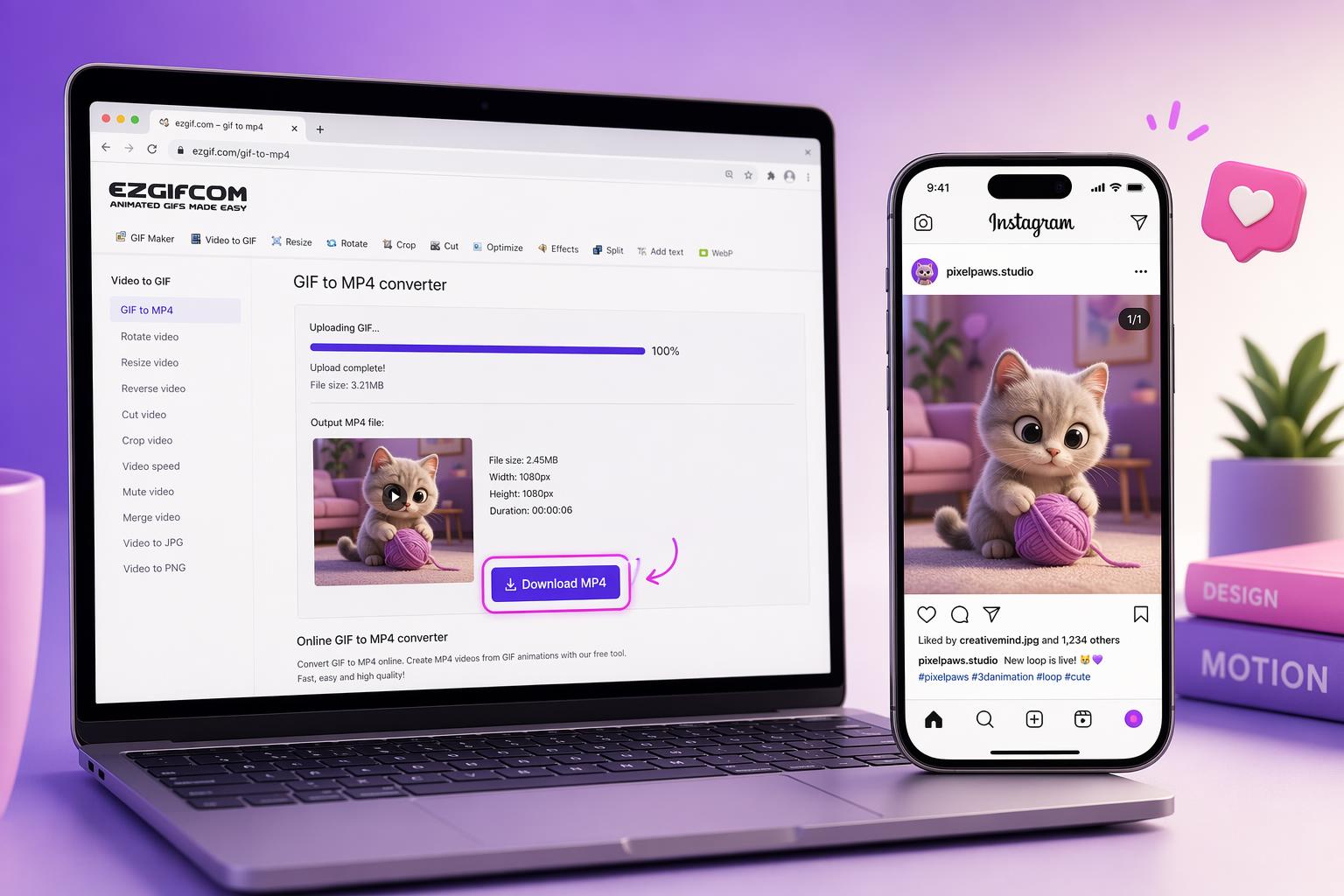
Feed needs an MP4. Schedulers like Hootsuite and Buffer hit the same wall (they convert your GIF to a still image, not a video). Convert the GIF first, then upload the MP4 normally. (Hootsuite confirms.)
Recommended path: ezgif (free, fastest)
- Go to ezgif.com/gif-to-mp4.
- Upload your .gif. The free tier accepts files up to 35MB. Larger than that, use Adobe Express instead.
- Click Convert to MP4. The output is a silent .mp4 (no audio track).
- Download the file. It is now Feed-ready.
- In Instagram, tap the plus icon to create a new post, pick the .mp4 from camera roll, crop to 1:1 (square) or 4:5 (portrait), and post.
- GIPHY native share: search the GIF on the GIPHY mobile app, tap the paper-airplane share icon, pick Instagram, pick Feed. GIPHY auto-converts to a 15-second .mp4 and hands it to the Instagram composer. Zero manual steps.
- Adobe Express GIF-to-MP4 (free tool): drag a .gif in, hit save as MP4. Handles larger files than ezgif.
- CapCut (gif-to-mp4 tool): same drag-and-drop. Lets you add audio inline, which improves Feed performance because silent videos get less reach.
Specs that actually pass Meta's upload pipeline
- Duration: 3 to 15 seconds (under the 3s minimum, Instagram rejects with "video too short")
- Loop: enable loop count of at least 3 in your converter so viewers see the motion twice
- Resolution: 1080x1080 square or 1080x1350 portrait
- File size: under 15MB for smooth mobile uploads
- Codec: H.264 video, AAC audio (even if silent)
Source: SocialPilot 2026 specs.
Method 4: Animated Stickers in a Reel
GIPHY stickers in Reels work identically to Stories (Method 1). One gotcha: place the sticker AFTER you finalize the trim, or Reels silently drops it. To make a Reel that IS the GIF, convert to MP4 (Method 3) and upload at 1080x1920.
Why Instagram Refuses Direct .gif Uploads in Feed
Feed only accepts JPEG, PNG, MP4, and MOV. Stickers in Stories and Reels are MP4 clips pulled from GIPHY's CDN, not actual .gif files. There is no in-app conversion happening for you.
When the GIF Tab Is Missing or Empty
The most-reported GIF problem on Instagram is the GIF tab going missing or returning grey boxes. Complaints aggregated by techissuestoday show this hits iOS and Android, disproportionately on Business and Creator accounts.
Fixes in order of likelihood
- Update the Instagram app. The GIF tab failure is most often a stale-build issue. Update via App Store or Google Play.
- Force close and relaunch. On iOS, swipe up and kill the app. On Android, hold the app icon, tap App Info, then Force Stop.
- Clear the app cache (Android only). Settings then Apps then Instagram then Storage then Clear Cache.
- Switch from Business to Personal temporarily. Settings then Account Type then Switch to Personal Account. If the GIF tab returns, the cause is account-type gating. Meta tests features unevenly across surfaces.
- Check region. Some markets get rollouts later than others. If you are on a VPN, turn it off.
- Reinstall the app. Last resort. Log out first, uninstall, reinstall, log back in.
Quick Reference: Common Errors and Fixes
Quick reference, repeats the fixes from above.
GIF posts as static image
Feed only. You uploaded a raw .gif. Instagram only reads the first frame.
Fix: convert .gif to .mp4 first (Method 3).
"Video too short" error
Your source GIF was under 3 seconds. Instagram's Feed minimum is 3 seconds.
Fix: loop the GIF 3+ times in your converter before exporting.
GIF tab is empty or grey boxes
Outdated app, account-type gating, or a GIPHY API hiccup on Meta's side.
Fix: update, force close, switch to Personal account to test.
Sticker disappeared in Reel
You trimmed across the frames the sticker sat on. Reels does not warn you.
Fix: trim first, place sticker after.
Branded GIPHY GIFs not appearing
Your account may have been silently switched from GIPHY to Tenor for the sticker tray.
Fix: confirm via Latenode forum patterns; no in-app toggle exists.
GIF in DM plays as still image
The file you saved is actually a JPEG preview with a .gif extension, not a real .gif.
Fix: re-download from a source that exports as .gif (right-click Save as).
Pro Tips for Marketers Using GIFs on Instagram
1. GIFs in Feed underperform 9:16 video almost every time
A converted GIF as a square Feed video has a hard engagement ceiling. The Reels algorithm prefers vertical 9:16 native content. If reach is the goal, build the idea as a Reel. GIFs in Feed work best as carousel accents, not standalone posts.
2. Get a GIPHY Brand Channel if you want your stickers in the tray
Apply at giphy.com/apply. Upload at least 5 original GIFs. Channel approval takes about a week; each sticker reviewed in 12 to 48 hours. Custom stickers need 20%+ transparent pixels, 500-600px dimensions, and 5+ keywords (full requirements). Payoff: any Instagram user typing your brand name surfaces your sticker.
3. Add audio when you convert
Silent videos get suppressed. When converting .gif to .mp4 with CapCut, drop in a 3-second royalty-free audio loop. Even ambient room tone counts. Files with an audio track perform measurably better in 2026 testing.
4. Use Stories GIFs as commentary, not as the asset
GIPHY stickers work best when they react to the photo underneath (confetti over a launch, a slow-clap over a testimonial). Used as the entire creative they read low-effort. Used as a reaction layer they read charming.
5. Reel beats converted GIF, every time
If your goal is short motion in Feed, brief a 6-second vertical and post it as a Reel. Converted GIFs lose quality and the Reels algorithm doesn't reward them.
Build a 9:16 ad instead.
AdMakeAI's Create Ad tool generates short-motion 9:16 ads in about 30 seconds from a single product photo, with the loop, the hook, and the format already set up for Reels and Stories. Free credits to test.
Frequently Asked Questions
Skip the conversion next time.
AdMakeAI generates 9:16 motion ads from a single product photo. Free credits to try.
Free credits included. ~30 seconds per ad.
Related Resources
Instagram Story Dimensions in 2026
The full 1080x1920 spec, safe zones, and the crop the algorithm applies.
Facebook Video Ad Sizes in 2026
Every placement, length, codec, and aspect ratio. The companion spec sheet to this guide.
Create Facebook Ad
Skip the GIF-to-MP4 dance. Generate native short-motion ads in seconds.
Make your next ad from what already runs
Research what competitors are running, then generate your own on-brand ads in minutes.